Embedding Emson Form Widget
You can use Emson as an embedded form on your website. The form could be a simple contact form, a support request form or a feedback form. You can embed the form in any page of your website. The form will allow your customers to submit messages that will appear in the inbox you have created.
In order to embed the form you need to have an inbox created. See inbox setup for details.
Embedding
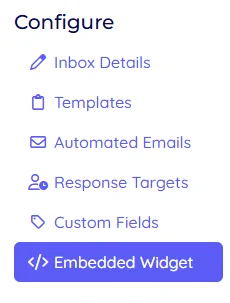
Once you have an inbox configured navigate to the setup page by clicking the Embedded Widget menu option, see below:
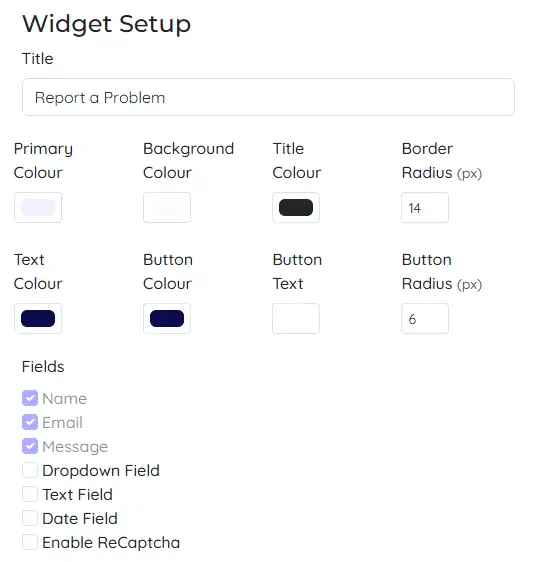
You will be presented with a form to configure the widget. You can configure the title, how it looks and the fields that are displayed. The list of fields will also include any custom fields you have created for your inbox.
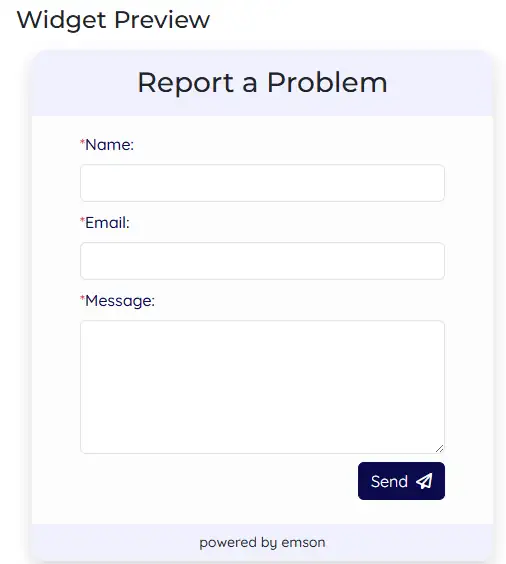
Next to the configuration form is a preview of the widget. You can see how it will look on your website.
Tip
The powered by Emson link is always displayed in the form footer.
Once you have configured the widget to your liking, copy the code snippet from the bottom of the page and paste it into your website’s HTML where you want the form to appear.
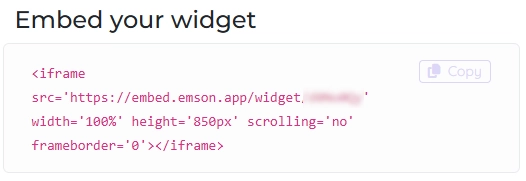
Tip
You can embed the widget in multiple pages of your website. Just copy the code snippet and paste it wherever you want the form to appear.
Pre-filling Form Fields
You can pre-fill the form fields by passing query parameters in the iframe src URL. This allows you to populate the form with user data or context-specific information.
The supported query parameters correspond to the form fields:
name: Pre-fills the name fieldemail: Pre-fills the email fieldmessage: Pre-fills the message field
Custom fields can also be pre-filled using their field names as parameters. Field names with spaces should have the spaces replaced with hyphens (e.g., ‘phone number’ becomes ‘phone-number’).
Example iframe src with pre-filled fields:
https://embed.emson.app/widget/xyz123?name=John%20Doe&email=john@example.com&message=Hello%2C%20I%20need%20help&phone-number=1234567890
Tip
URL encode the parameter values to handle special characters properly, as shown in the example with spaces (%20) and commas (%2C).
Thankyou Message
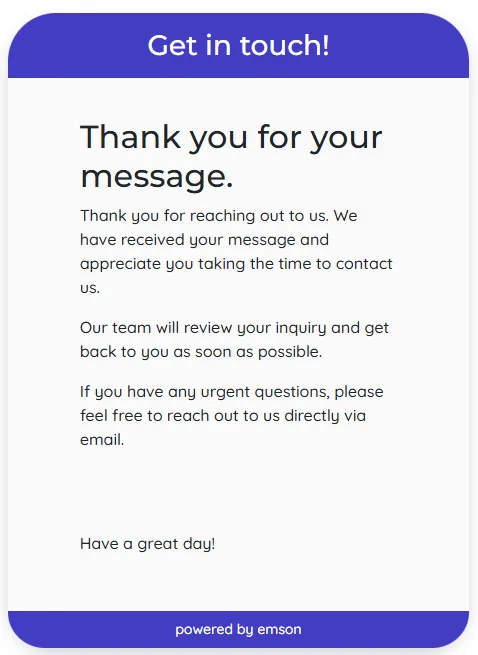
You can also configure a thank you message that will be displayed to the user after they submit the form. This is useful to let them know their message has been received.
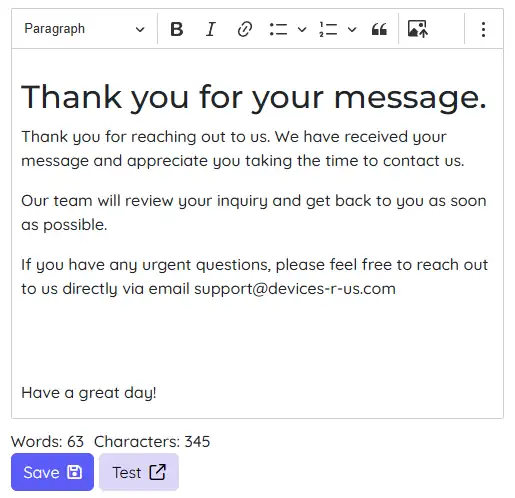
Tip
You can test the form by clicking the ‘Test’ button. It will open the form in a new tab. Note: it will sumbit a message into your inbox.
There is a preview of this message below the configuration form. You can see how it will look on your website.